Featured Examples
Sample configuration files for all networks are available in Examples Menu in NetSim Home Screen. These files provide examples on how NetSim can be used – the parameters that can be changed and the typical effect it has on performance.
AODV Routing
The Ad hoc On Demand Distance Vector Routing (AODV) protocol defines 3 message types:
Route Requests (RREQs): RREQ messages are used to initiate the route-finding process.
Route Replies (RREPs): RREP messages are used to finalize the routes.
Route Errors (RERRs): RERR messages are used to notify the network of a link breakage in an active route.
The route discovery process involves ROUTE REQUEST (RREQ) and ROUTE REPLY (RREP) packets. The source node initiates the route discovery process using RREQ packets. The generated route request is forwarded to the neighbors of the source node and this process is repeated till it reaches the destination. On receiving an RREQ packet, an intermediate node with route to destination or the destination node generates an RREP containing the number of hops required to reach the destination. All intermediate nodes that participate in relaying this reply to the source node create a forward route to destination [3].
RERR message processing is initiated when Node detects a link break for the next hop of an active route or receives a data packet destined for a node for which it has no (active) route.
Open NetSim and Select Examples-> Mobile Ad hoc Networks-> MANET AODV then click on the tile in the middle panel to load the example as shown in below screenshot Figure-1.

Figure-1: List of scenarios for the example of MANET AODV
The following network diagram illustrates, what the NetSim UI displays when you open the example configuration file see Figure-2
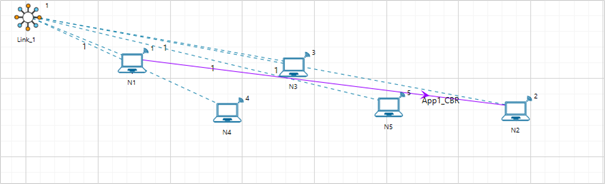
Figure-2: Network set up for studying the MANET AODV
Network Settings
A network scenario is designed in NetSim GUI, consisting of 5 wireless nodes omni ants, named N1, N2, N3, N4, and N5, and one link in the "Standard MANET" of the "Mobile Ad hoc Network" library.
In the general properties of N3, Wireshark Capture is set to Online. To configure any properties in the nodes, click on the node, expand the property panel on the right side, and change the properties as mentioned in the steps.
In the position properties, set the mobility model as No-Mobility for all devices present in the GUI.
The Medium Access Protocol is set to DCF in Interface 1(Wireless)-> Datalink layer of all the devices.
Click on link and expand property panel on the right, and set the Channel Characteristics : Path loss only; Path loss model: Log Distance; Path loss exponent: 3.1.
The routing protocol in the network layer is set to AODV for all nodes. As this is a global property, changing it on one node will affect all nodes.
Packet trace is enabled by clicking on the configure report tab, allowing us to track the route that the packets have taken to reach the destination based on AODV.
Configure the CBR application between two nodes by clicking on the set traffic tab from the ribbon at the top, selecting N1 as the source and N2 as the destination. Click on the created application and set the transport protocol to UDP, keeping the other properties as default.
Run simulation for 10 seconds.
Output: Open packet trace from simulation results window. The packet flow can be observed by filtering Control Packet Type/App Name to AODV RREQ , AODV RREP and AODV RREP (Hello) as shown below.

Figure-3: AODV different control packet in Packet trace
Source Node 1 initiates route discovery process using RREQ packets. The generated route request is broadcast to the neighbors of the source node i.e. Node 4.
Node 4 broadcasts the RREQ packet to its neighboring nodes i.e., Node 3, Node 1 since Node 4 does not have a route to destination Node 2.
Similarly, Node3 broadcasts the RREQ packet to Node 5 and Node 4.
Node 5 broadcasts to Node 2 and Node 3.
On receiving a RREQ packet, the Destination Node 2 generates a RREP packet and transmits to Node 5, Node 2 -> Node 5, Node 5 -> Node 3, Node 3 -> Node 4, and Node 4->Node 1.
After receiving the RREP, the Source Node 1 starts sending Data packets to Node 2 (Node 1 -> Node 4-> Node 3 -> Node 5 -> Node 2). To observe the same, filter the CONTROL PACKET TYPE/APP NAME to APP1_CBR and PACKET ID to 1 in packet trace.

In Wireshark, filter AODV packets and select the RREQ packets and expand Ad hoc on-demand distance vector protocol to view the above-mentioned fields of RREQ as shown Figure-4.

Figure-4: AODV RREQ control packet in Wireshark
Open Wireshark, filter AODV packets and select the RREP packets and expand Ad hoc on-demand distance vector protocol to view the above-mentioned fields of RREP as shown Figure-5.

Figure-5: AODV RREP control packet in Wireshark
ZRP-IARP
Open NetSim and select Examples->Mobile Ad hoc Networks->ZRP IARP then click on the tile in the middle panel to load the example as shown in below screenshot Figure-6.

Figure-6: List of scenarios for the example of ZRP-IARP
The following network diagram illustrates what the NetSim UI displays when you open the example configuration file see Figure-7.

Figure-7: Network set up for studying the ZRP-IARP
Network Settings
Set grid length as 600m*300m from grid setting property panel on the right. This needs to be done before any device is placed on the grid.
A network scenario is designed in NetSim GUI consisting of 5 wireless nodes and one ad-hoc link in the “Standard MANET” module of MANET Network library.
To configure any properties in the nodes, click on the node, expand the property panel on the right side, and change the properties as mentioned in the below steps.
In the position properties set mobility model as no mobility for all devices present in GUI.
The Medium access protocol was set to DCF in Interface 1(wireless)-> Datalink layer of all Wireless nodes.
The routing protocol in the network layer is set to ZRP for all nodes. As this is a global property, changing it on one node will affect all nodes.
Click on link and expand property panel on the right and set the channel characteristics: path loss only, path loss model: log distance, path loss exponent: 3 under medium property.
Configure CBR application from set traffic tab in ribbon on the top between wireless node 1 to wireless node 2 , click on the created application, expand the property panel on the right and set transport protocol to UDP
Enable packet trace from configure reports tab in ribbon on the top.
Run simulation for 10 seconds.
Output
Open Packet trace from simulation results window and observe Control Packet Type/App Name.

Figure-8: Packet Trace
Users can see only NDP Hello Message and OLSR TC MESSAGE since the destination node is within the zone. The ZRP framework proactively maintains local routing information (routing zones) based on periodic exchanges of neighbor discovery messages.
ZRP-IERP
Open NetSim and Select Examples -> Mobile Ad hoc Networks -> ZRP IERP then click on the tile in the middle panel to load the example as shown in below screenshot Figure-9.
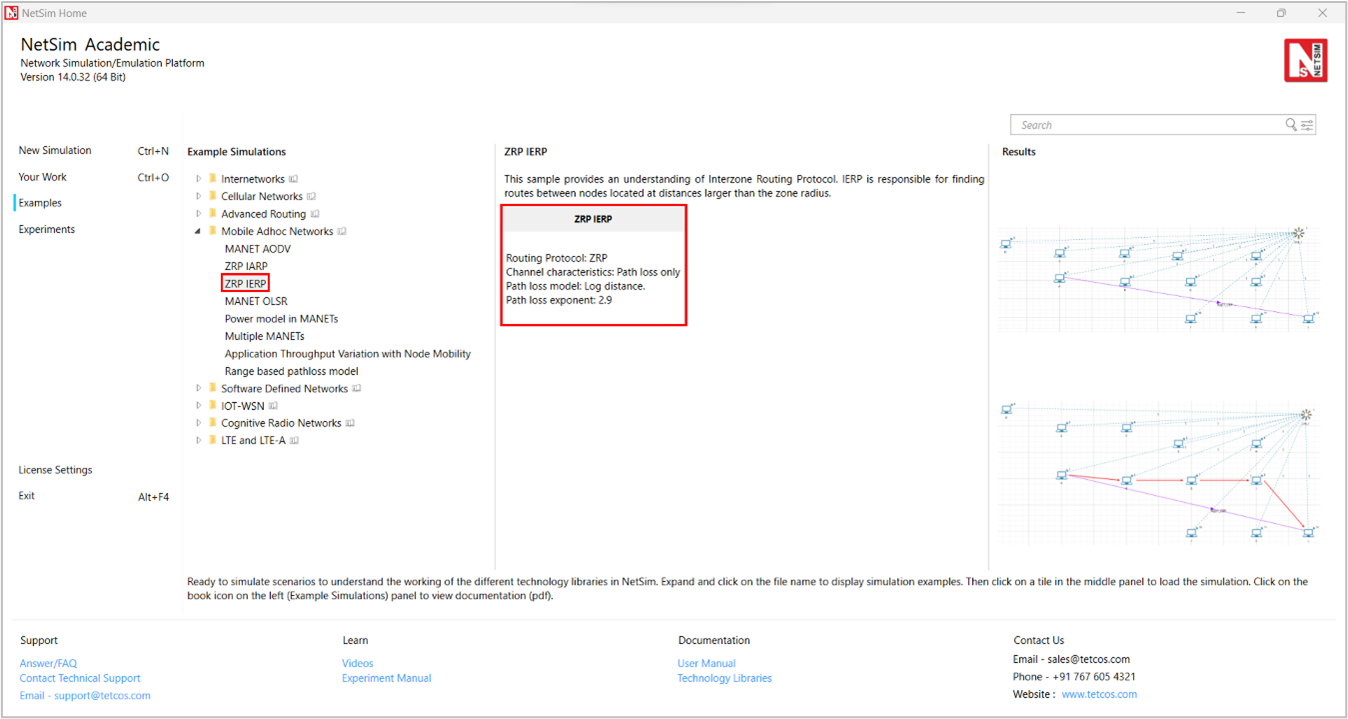
Figure-9: List of scenarios for the example of ZRP-IERP
The following network diagram illustrates what the NetSim UI displays when you open the example configuration file see Figure-10.

Figure-10: Network set up for studying the ZRP-IERP
Network Settings
Set grid length as 600m*300m from grid setting property panel on the right. This needs to be done before any device is placed on the grid.
A network scenario is designed in NetSim GUI consisting of 12 wireless nodes and one ad-hoc link in the “Standard MANET” of MANET Network library.
To configure any properties in the nodes, click on the node, expand the property panel on the right side, and change the properties as mentioned in the below steps.
In the position properties set mobility model as No mobility for all devices present in GUI.
The medium access protocol was set to DCF in Interface 1(wireless)-> Datalink layer of all wireless nodes
The routing protocol in the network layer is set to ZRP for all nodes. As this is a global property, changing it on one node will affect all nodes.
Click on link and open property panel on the right and set the Channel characteristics: Log distance, Path loss exponent: 2.9.
Configure CBR application from wireless nodes 1 to wireless nodes 12 by clicking on set traffic tab in ribbon on the top. Click on the created application and set the transport protocol to UDP, keeping the other properties as default.
Enable Packet Trace from configure reports tab in the ribbon on the top.
Run simulation for 10 seconds.
Output
Open packet trace and filter Control Packet Type/App Name to IERP route request. In the below packet trace, node-1 is sending IERP route request packets to its peripheral nodes 2 and 3 since the destination is not present in node1’s zone. Similarly, Node 2 transmits IERP route request packets to node 5 and 7 and node 3 transmits to node 4. To observe the IERP route request flow from the respective nodes filter the Transmitter Id to Node 1, Node 2 and Node 3 alone.

Figure-11: Packet Trace
Node 7 generates an IERP Route Reply packet in response to the IERP Route Request since the destination node, Node 12, is present in the Node 7 zone. IERP Route Reply packet routes through Node 7 🡪 Node 2 and Node 2 🡪 Node 1. And the data packet routes through Node 1🡪 Node 2, Node 2 🡪 Node 7, Node 7 🡪 Node 9 and Node 9 🡪 Node 12.

Figure-12: Packets take the route 1 > 2 > 7 > 9 > 12 when running ZRP-IERP
MANET-OLSR
Part-1: MPR Table Formation in NetSim
Introduction
In OLSR, only a subset of preselected nodes called MPR (Multi-Point Relays) are used to perform topological advertisements. Control messages (containing e.g. routing information) are broadcast and forwarded only by MPRs. This leads to a reduction in the number of transmitter nodes, in the overhead and in useless receptions of messages on nodes. The well-known storm problem due to broadcasting is avoided.
Creation of MPRs in OLSR
Neighbor Discovery
Each node in the OLSR network periodically broadcasts HELLO messages to its immediate neighbors. These messages contain information about the node itself and its direct neighbors (1-hop neighbors).
From these HELLO messages, a node learns about its 1-hop and 2-hop neighbors (the neighbors of its neighbors).
MPR Selection
Goal: The primary goal of selecting MPRs is to ensure that all 2-hop neighbors of a node can be reached through at least one of its MPRs.
A node selects a subset of its 1-hop neighbors as MPRs in such a way that these MPRs can cover all of its 2-hop neighbors. This means that every 2-hop neighbor must be reachable via at least one selected MPR.
The selection of MPRs is done based on degree of connectivity - nodes with a larger number of 2-hop neighbors might be preferred to cover more ground with fewer MPRs.
Route Calculation Using MPRs
Only the nodes selected as MPRs are responsible for forwarding control messages like Topology Control (TC) messages. This significantly reduces the number of transmissions, leading to less network overhead.
When a node needs to broadcast a TC message, it only forwards it to its MPRs, which in turn continue the broadcast, ensuring that the entire network receives the update.

Figure-13: Illustration of MPR Selection Algorithm [4]. U is the node for which the MPR set is being calculated. Red nodes are the set of isolated nodes. Blue nodes are the set of MPR nodes obtained in the first step. Node E, in purple, is the MPR node selected in the second step. At the end of step 2, the remaining white nodes can be reached either directly or through one of the MPRs.
In the first step, a node, node U (the green node in the diagram), selects relays from its one-hop neighbors (N1). These relays, referred to as MPR1 nodes (highlighted in blue), ensure that all isolated nodes in its two-hop neighborhood (N2), shown in red, are reachable. For instance, node T is considered an isolated node that can only connect to node U through node H. Therefore, node H is elected as an MPR in this step, ensuring node T can reach U in two hops.
In the second step, node U focuses on covering any remaining nodes in its two-hop neighborhood that were not connected by the initial MPR selection. It considers nodes in N2 that remain uncovered, as well as one-hop neighbors not chosen in the first step, like nodes B, F, E, and D. Node U then selects additional MPRs based on their connectivity to maximize coverage. For example, node E is chosen because it can cover multiple nodes in N2 that would otherwise remain isolated. The algorithm concludes when all nodes within two hops of node U are connected, forming an efficient routing set, represented as MPR(U) = {C, E, I, H, G} in the diagram. This process ensures optimal coverage while minimizing redundant transmissions.
3D Network Topology
In the network topology illustrated in Figure-13, connecting lines indicate that two nodes are within communication range of each other, while the absence of a line signifies that the nodes are out of range. The specific distance requirements between nodes create a set of spatial constraints that cannot be satisfied when nodes are arranged only in the X-Y plane. To resolve this geometric limitation, the nodes are positioned in three-dimensional space, utilizing the Z-axis to achieve the required connectivity pattern. The coordinates of the nodes are given in the table below.
Node ID |
X |
Y |
Z |
|---|---|---|---|
1 |
500.00 |
250.00 |
150 |
2 |
500.00 |
150.00 |
230 |
3 |
571.00 |
179.00 |
70 |
4 |
600.00 |
250.00 |
230 |
5 |
571.00 |
321.00 |
70 |
6 |
500.00 |
350.00 |
230 |
7 |
429.00 |
321.00 |
70 |
8 |
399.83 |
249.15 |
230 |
9 |
429.00 |
179.00 |
70 |
10 |
394.06 |
105.73 |
0 |
11 |
382.76 |
113.09 |
130 |
12 |
571.78 |
97.90 |
130 |
13 |
614.60 |
118.89 |
0 |
14 |
624.00 |
289.00 |
160 |
15 |
564.00 |
263.00 |
0 |
16 |
545.27 |
396.84 |
170 |
17 |
455.00 |
437.00 |
65 |
18 |
393.35 |
300.00 |
0 |
19 |
352.03 |
339.62 |
150 |
20 |
330.36 |
252.03 |
300 |
Table-1: XYZ coordinates for the 20 nodes in this scenario
A 3D view of the topology is shown in Figure-14 below.

Figure-14: 3-D views of the topology. The range of the nodes is 130m. View-1 shows the network topology from a front right perspective, while View-2 provides a top down perspective.
Network Setup
Open NetSim and Select Examples > Mobile Ad hoc Networks > MANET-OLSR then click on the tile in the middle panel to load the example as shown in below

Figure-15: List of scenarios for the example of MANET-OLSR
The following steps were carried out to generate this scenario:
Set grid length as 1000 x 500 from grid setting property panel on the right. This needs to be done before any device is placed on the grid.
Create a scenario with 20 Nodes as shown in Figure 4 13.
Click on wireless node, expand the property panel on right and go to Position layer > set Mobility model to No mobility in all nodes.
Set the Routing protocol to OLSR in Network layer of wireless nodes. As this is a global property, changing it on one node will affect all nodes.
Click on the link, expand link property on right and set the channel characteristics to pathloss and pathloss model as Range based, with range as 130m.
Enable OLSR MPR log by clicking on configure reports tab and plots as shown below.

Figure-16: Enabling OLSR MPR log
Run the simulation for 50 seconds.
Results and Analysis
In the Results dashboard, click on logs tab and open OLSR_MPR_Log.csv file.
Filter the device name column to U.

Figure-17: MPR table formed at node U node
Initially, U starts with a single MPR node, "E," at 1598.32 ms. Over time, more nodes are added to the MPR list (e.g., "C", "H", "I", "G"), with some nodes being dropped or rearranged.
We finally get the set of MPR nodes as "C; I; G; H; E".
Part-2: NDP and TC Messages in OLSR
Introduction
OLSR Hello Messages (NDP)
The OLSR Hello messages, part of the Neighbor Discovery Protocol (NDP), are exchanged between directly connected nodes. They enable each node to detect its one-hop and two-hop neighbors. These messages are used to establish and maintain neighbor relations, which are necessary for building an updated and accurate network topology. Hello messages include information about link status and the willingness of a node to participate in forwarding traffic for its neighbors. This process helps in selecting Multipoint Relays (MPRs), which minimize the number of transmissions required for routing updates.
OLSR TC Messages

Figure-18: OLSR Hello Message Broadcasting all Its Neighbors information with associated Link Type
Network Setup
Consider the same scenario as Part -1.
Click on wireless node U, expand property panel on right and go to General Layer 🡪 Set Wireshark Capture to Online.
Go to Configure Reports tab 🡪 Enable Packet trace.
Run the simulation for 50 seconds.
Results and Analysis
Wireshark is generated during the simulation of network.
Neighbor Discovery Process (NDP) or Hello Messages:
The periodic exchange of Hello messages in OLSR dynamically updates the MPR (Multi-Point Relay) list of a device. You can observe this in the OLSR_MPR_Log.csv by filtering the Device Name column to "U."
See Figure-16,
Initial MPR Selection: At 1598.32 ms, the device starts with a single MPR node, "E." This means "E" was initially the best choice for relaying messages.
MPR List Evolution: Over time, more nodes like "C," "H," "I," and "G" are added to the list. This indicates the device is adapting to network changes, selecting new relays as network conditions evolve.
Dynamic Changes: Nodes are added or removed from the MPR list based on their current efficiency in relaying messages, reflecting ongoing adjustments to the network topology.
Multiple MPR Nodes: We finally get the set of MPR nodes as "C; I; G; H; E".

Figure-19: MPR table formed at node U node after periodic exchange of Hello messages.
Topology Control (TC) Messages
TC (Topology Control) messages are periodically exchanged to inform nodes about the network's topology. Each node updates its routing table based on the information in these messages, which include details about MPRs (Multi-Point Relays) and their connections.
When a node receives a TC message, it uses the link information to add or adjust routes in its table, ensuring it always has the most efficient paths to other nodes. This dynamic updating keeps the network adaptive to changes, such as new routes or broken links.

Figure-20: TC Message Broadcasted from node to all its Neighbors, so that other nodes in the network can use this information to update their own routing tables.

Figure-21: Routing Table of Node U
The routing table shown in Figure-21 reflects these updates, displaying the optimal routes formed from the latest TC message exchanges.
How often are NDP Hello Messages and TC Messages exchanged in the Network?
Open Packet trace from simulation results window and filter Control Packet Type/App Name to NDP HELLO MESSAGE, Source ID to Node-1. All the nodes in the network exchange the NDP HELLO MESSAGEs periodically (for every 2 seconds- check NETWORK LAYER ARRIVAL TIME column) to detect the neighbors. In the below screenshot, Node-1 is broadcasting NDP HELLO MESSAGES to its neighbors 2, 3, 4 ,5, 6, 7, 8 and 9 for every 2 seconds as shown below.

Figure-22: NDP HELLO MESSAGES to its neighbors 2, 3, 4,5,6,7,8 and 9 for every 2 seconds in Packet Trace.
You can observe in the packet trace that hello packets are exchanged every 1.7 seconds. This is obtained from [5]
\(Actual\ Message\ Interval = Message\ Interval - \ \ Jitter\)
This is applicable for TC messages as well.
Now filter Control Packet Type/App Name to OLSR TC Message, Source Id and Transmitter Id to Node-1. All nodes in the network, broadcasts Topology control (TC) messages (for every 5 seconds - check Network layer arrival time column) in order to build the topology information base. In the below screenshot, node-1 is broadcasting OLSR TC Message to its neighbors 2, 3, 4, 5, 6, 7, 8 and 9 for every 5 seconds as shown below.

Figure-23: OLSR TC Message sent to neighbors 2, 3,4,5,6,7,8 and 9, every 5 seconds as can be seen in packet trace
Comparative analysis of AODV and OLSR in static and mobility scenarios
Introduction
Mobile Ad hoc Networks (MANETs) are self-organizing wireless networks that operate without a fixed infrastructure. The dynamic and distributed nature of MANETs introduces challenges for routing protocols, particularly in handling topology changes and maintaining efficiency under varying traffic loads. Routing protocols for MANETs are broadly categorized into reactive and proactive approaches, each with distinct mechanisms and trade-offs.
Ad-hoc On-Demand Distance Vector (AODV): AODV is a reactive routing protocol that establishes routes only when needed. As described by Clausen et al. [6], AODV initiates route discovery by broadcasting route request packets, followed by unicast replies for discovered routes. This approach reduces control overhead in static or low-traffic networks. However, frequent route rediscoveries caused by mobility or high traffic densities can increase overhead.
Optimized Link State Routing (OLSR): OLSR is a proactive protocol that maintains routing tables for all nodes in the network at all times. Clausen et al. [6] , highlights OLSR’s use of Multipoint relays (MPRs) to optimize control traffic by reducing redundant retransmissions during periodic updates. While OLSR ensures immediate route availability, it generates constant control traffic regardless of traffic flow or mobility.
This example evaluates and compares the performance of AODV and OLSR under three scenarios:
No mobility: Nodes remain stationary throughout the simulation.
With mobility: Nodes follow a random walk mobility model, but with a fixed speed.
Varying velocity: Nodes move at speeds ranging from 0 m/s to 100 m/s.

Figure-24: 10-Node Network Topology in MANET Simulation. The area of operation is set to 10km × 5km. Nodes communicate wirelessly using ad hoc routing protocols. The range of each node is set to 1.7 km and transmissions could be single hop or multi hop.
We analyze which protocol is more resource-efficient under different network conditions, focusing on control traffic overhead, which refers to the additional network traffic generated by routing protocols during activities such as route discovery, updates, and maintenance. Since excessive control traffic can degrade performance in MANETs by consuming the already limited bandwidth, minimizing this overhead is crucial for efficient network operation. By comparing AODV and OLSR, this study provides insights into their suitability for specific scenarios, helping users make appropriate decisions based on trade-offs between scalability, bandwidth utilization, and control overhead.
Simulation Setup
Network Configuration
These settings have been pre-configured in the simulatio environment.
Simulation Parameters |
|
|---|---|
Environment size |
10000 \(\times\) 5000 |
Mobility model |
No mobility/Random walk |
Velocity |
10 m/s (only for Random walk) |
Calculation Interval |
2 second (only for Random walk) |
Routing protocol |
AODV/OLSR |
MAC protocol |
802.11 b |
Transmission range |
1700 m |
Table-2: Simulation parameters for MANET scenario
Setting transmission range in NetSim
Click on the link connecting the nodes and open the link properties by navigating to the medium property in the link properties panel (RHS).
Set channel characteristics to pathloss, choose Range based for the pathloss model, and enter 1700 m in the Range (m) field.

Figure-25: Configuring transmission range in NetSim link properties.
Enable packet trace from the configure reports tab in ribbon on top.
Run the simulation for 50 seconds
Scenario Setup
For both AODV and OLSR, we simulate 30 cases with varying numbers of applications. Each case increases the number of applications by one, starting from a single application in Case 1 and going up to 30 applications in Case 30.
Repetition of Simulations
To reduce the impact of randomness, each scenario (AODV and OLSR) is repeated with three sets of simulations:
Set 1: Initial set of source-destination pairs.
Set 2: Second set of source-destination pairs.
Set 3: Third set of source-destination pairs.
The final results are the averaged control traffic overhead across these three sets.
In the NetSim GUI, we provide configuration files for three cases: mobility, No-mobility, and velocity. The dataset includes:
Mobility Cases:
Set 1: 30 cases of AODV and OLSR.
No-Mobility Cases:
Set 1: 30 cases of AODV and OLSR.
Velocity Cases:
Set 1: 10 cases of AODV and OLSR across varying velocities.
The complete set of configuration files is available for download: GitHub Zip folder download link: https://github.com/NetSim-TETCOS/Comparative-analysis-of-AODV-and-OLSR-v14.4/archive/refs/heads/main.zip
Click on the link above to download the comparative analysis examples.
Extract the zip folder. The extracted project folder consists of case files for mobility, No-mobility, and velocity cases.
Instructions for importing the workspace are provided in section 4.9.2 of the NetSim user manual.
Steps for Control Traffic Overhead Calculation
Running the Simulation
Open NetSim and Select Examples-> Mobile Ad hoc Networks -> Comparative Study of AODV and OLSR

Figure-26: Network Scenario. With 10 wireless nodes configured with 10 traffic flows with each other
For this example, Open the No-mobility case-10 scenario (e.g., No-mobility case > Set-1 > AODV > case-10), which is configured with 10 applications.
Run the simulation for 50 seconds.
Accessing the Packet Trace
After each simulation is completed, open the packet trace file generated from the result dashboard.

Figure-27: Opening packet trace from simulation results window
This file contains detailed logs for each packet transmitted in the network.
Filtering Control Packets for AODV
In this step, we filter AODV control packets specifically to calculate the control traffic overhead accurately:

Figure-28: Filtering AODV Control Packets in Packet Trace
Filtering by Control Packet Type: We select only rows where Control Packet Type/App Name specifies AODV. This isolates the AODV-specific control traffic data.
Removing Duplicate Entries
Broadcast control packets, used by AODV/OLSR during route discovery, are transmitted to all neighbouring nodes within range. In all these cases the same packet is received and logged by multiple nodes. Since each neighbor logs the packet, the same packet(s) appears multiple times in the data, however the packet(s) was transmitted only once by the sender.

Figure-29: Observing the phy layer start time from packet trace
For example, a packet sent by Node-9 may be received by multiple nodes (Node-2, Node-5, etc.) at the same Phy layer start time(µS).
By keeping only unique entries based on Packet Id and Phy layer start time(µS), we avoid counting the same packet multiple times, which would otherwise inflate the overhead.
Steps to remove Duplicate packet entries
Go to Data > Remove Duplicates in your spreadsheet software.
In the Remove Duplicates dialog:

Figure-30: Removing Duplicate AODV Control Packets Based on Packet ID and Start Time
Unselect all columns.
Select only the columns Packet Id and Phy layer start time(µS).
This will remove duplicate AODV control packets based on packet ID and start time.
Calculating the Control Traffic Overhead
In the filtered data, locate the Phy layer pay load(Bytes) column.

Figure-31: Calculating the total control traffic overhead
Finally, we calculate the sum of Phy layer payload (Bytes) for the unique entries. This gives the actual control traffic overhead for AODV, ensuring an accurate representation of the protocol’s overhead without duplicate broadcasts.
Record this sum as the Control traffic overhead for the current case of AODV.
Repeating for OLSR
Configure the network layer protocol to OLSR instead of AODV.
Follow above steps to calculate the control traffic overhead for each case of OLSR.
Filter for OLSR packets in the Control Packet Type/App Name column.

Figure-32: Filtering OLSR Control Packets in Packet Trace
Here just filter NDP Hello Message and OLSR TC Message
Repeat above steps for each case (Case 1 to Case 30) of AODV and OLSR.
Record the overhead values.
Averaging Across Sets
Calculate the control traffic overhead for Set 1.
Repeat the calculations for Set 2 and Set 3.
Average the control traffic overhead values from sets 1, 2, and 3 to obtain the final control traffic overhead for each case.
We have used the same method to get the results for Mobility case also
Results and Discussion
No-Mobility cases
The results for the No-mobility case of these three sets are as follows:
Table:
Set 1 (Ctrl Traffic OH) |
Set 2(Ctrl Traffic OH) |
Set 3 (Ctrl Traffic OH) |
Average |
|||||
|---|---|---|---|---|---|---|---|---|
No. of Traffic flows |
AODV\(\mathbf{(B)}\) |
OLSR\(\mathbf{(B)}\) |
AODV\(\mathbf{(B)}\) |
OLSR\(\mathbf{(B)}\) |
AODV\(\mathbf{(B)}\) |
OLSR\(\mathbf{(B)}\) |
AODV\(\mathbf{(B)}\) |
OLSR\(\mathbf{(B)}\) |
1 |
25408 |
481992 |
26176 |
481308 |
25424 |
480220 |
25669 |
481173 |
2 |
26520 |
440320 |
26972 |
461744 |
28160 |
471988 |
27217 |
458017 |
3 |
27896 |
469316 |
26972 |
459604 |
30924 |
490188 |
28597 |
473036 |
4 |
27348 |
480884 |
27588 |
478740 |
30228 |
489796 |
28388 |
483140 |
5 |
28204 |
465048 |
29308 |
430536 |
32320 |
491600 |
29944 |
462395 |
6 |
31052 |
430108 |
30324 |
437132 |
32284 |
460404 |
31220 |
442548 |
7 |
30848 |
473172 |
32180 |
452036 |
29772 |
478536 |
30933 |
467915 |
8 |
32584 |
436616 |
32956 |
452296 |
31596 |
472688 |
32379 |
453867 |
9 |
34360 |
427428 |
33108 |
443520 |
35016 |
437920 |
34161 |
436289 |
10 |
33616 |
456036 |
36252 |
477660 |
32548 |
420932 |
34139 |
451543 |
11 |
36476 |
432028 |
90788 |
442452 |
34268 |
432896 |
53844 |
435792 |
12 |
38444 |
448028 |
44644 |
460820 |
38084 |
460484 |
40391 |
456444 |
13 |
38376 |
468408 |
38940 |
457412 |
39712 |
463236 |
39009 |
463019 |
14 |
49996 |
443056 |
48136 |
477200 |
35320 |
477716 |
44484 |
465991 |
15 |
48060 |
453160 |
48212 |
454996 |
42052 |
465972 |
46108 |
458043 |
16 |
46852 |
459232 |
59984 |
455332 |
42356 |
489372 |
49731 |
467979 |
17 |
51872 |
449772 |
91728 |
431432 |
38832 |
425436 |
60811 |
435547 |
18 |
51668 |
479544 |
91840 |
439224 |
57864 |
460660 |
67124 |
459809 |
19 |
52184 |
481220 |
69356 |
445224 |
47020 |
464732 |
56187 |
463725 |
20 |
52824 |
464176 |
75636 |
421440 |
78740 |
423412 |
69067 |
436343 |
21 |
75048 |
458424 |
78500 |
466688 |
542100 |
449080 |
231883 |
458064 |
22 |
79456 |
439976 |
455780 |
466716 |
59932 |
442384 |
198389 |
449692 |
23 |
89332 |
424888 |
2380728 |
447300 |
79424 |
426636 |
849828 |
432941 |
24 |
85116 |
473820 |
2915412 |
476732 |
126364 |
407244 |
1042297 |
452599 |
25 |
82756 |
443136 |
1369760 |
450536 |
1989620 |
414728 |
1147379 |
436133 |
26 |
2083272 |
420028 |
2360080 |
492896 |
1786548 |
397752 |
2076633 |
436892 |
27 |
1385988 |
425060 |
3691028 |
504956 |
2056808 |
384900 |
2377941 |
438305 |
28 |
2168944 |
454656 |
2564324 |
486992 |
3477228 |
394188 |
2736832 |
445279 |
29 |
1064636 |
454716 |
3782316 |
459032 |
3560280 |
374716 |
2802411 |
429488 |
30 |
2556544 |
406544 |
4280888 |
499940 |
2235200 |
392132 |
3024211 |
432872 |
Table-3: Control Traffic Overhead (Bytes) for OLSR and AODV across Three Simulation Sets
This table presents the control overhead data for 30 traffic flows, averaged across three simulation sets (Set 1, Set 2, and Set 3) with unique source-destination pairs. The averaging process reduces randomness and ensures a more accurate comparison for both the no mobility and mobility scenarios.
Plot:

Figure-33: Control Packet Overhead vs. Number of traffic flows in No-mobility case
Mobility cases
The results for the Mobility case of these three sets are as follows:
Table:
Set 1 (Ctrl Traffic OH) |
Set 2(Ctrl Traffic OH) |
Set 3 (Ctrl Traffic OH) |
Average |
|||||
|---|---|---|---|---|---|---|---|---|
No. of Traffic flows |
AODV\(\mathbf{(B)}\) |
OLSR\(\mathbf{(B)}\) |
AODV\(\mathbf{(B)}\) |
OLSR\(\mathbf{(B)}\) |
AODV\(\mathbf{(B)}\) |
OLSR\(\mathbf{(B)}\) |
AODV\(\mathbf{(B)}\) |
OLSR\(\mathbf{(B)}\) |
1 |
25468 |
567404 |
25468 |
567404 |
27564 |
523484 |
26167 |
552764 |
2 |
26100 |
571956 |
27732 |
565780 |
27568 |
554052 |
27133 |
563929 |
3 |
28284 |
575044 |
27816 |
540492 |
27684 |
565280 |
27928 |
560272 |
4 |
28608 |
547816 |
30364 |
545140 |
31836 |
525460 |
30269 |
539472 |
5 |
29212 |
560864 |
31396 |
511772 |
30684 |
472132 |
30431 |
514923 |
6 |
31328 |
558536 |
32928 |
485168 |
31876 |
543732 |
32044 |
529145 |
7 |
32536 |
523900 |
35684 |
634288 |
32808 |
527412 |
33676 |
561867 |
8 |
32752 |
569348 |
31396 |
587000 |
32808 |
528504 |
32319 |
561617 |
9 |
35044 |
604432 |
31636 |
636816 |
33824 |
611956 |
33501 |
617735 |
10 |
34068 |
518736 |
34280 |
593988 |
36032 |
674456 |
34793 |
595727 |
11 |
39036 |
509376 |
37544 |
572560 |
37248 |
582228 |
37943 |
554721 |
12 |
36660 |
521772 |
39668 |
554048 |
39644 |
585284 |
38657 |
553701 |
13 |
37036 |
503700 |
48180 |
578588 |
44104 |
593464 |
43107 |
558584 |
14 |
47028 |
553828 |
42636 |
573436 |
53084 |
573252 |
47583 |
566839 |
15 |
50748 |
540140 |
50012 |
549184 |
355392 |
576804 |
152051 |
555376 |
16 |
59056 |
460676 |
1355420 |
559148 |
60640 |
563972 |
491705 |
527932 |
17 |
62776 |
555588 |
183964 |
547756 |
62644 |
465324 |
103128 |
522889 |
18 |
60436 |
574892 |
71752 |
500528 |
52292 |
567476 |
61493 |
547632 |
19 |
126680 |
572652 |
60120 |
562644 |
77252 |
547496 |
88017 |
560931 |
20 |
63424 |
505444 |
110380 |
570064 |
72000 |
538784 |
81935 |
538097 |
21 |
98604 |
517780 |
2194176 |
524448 |
99292 |
500468 |
797357 |
514232 |
22 |
743344 |
501272 |
3502212 |
572152 |
76796 |
604312 |
1440784 |
559245 |
23 |
3766092 |
517560 |
2906148 |
561000 |
100112 |
546148 |
2257451 |
541569 |
24 |
511088 |
472460 |
3594464 |
579412 |
1515364 |
530324 |
1873639 |
527399 |
25 |
3115056 |
403116 |
2297716 |
500444 |
1916896 |
369752 |
2443223 |
424437 |
26 |
2756380 |
547684 |
2900080 |
539396 |
2454956 |
570272 |
2703805 |
552451 |
27 |
1902272 |
508524 |
4675832 |
477324 |
2272428 |
537524 |
2950177 |
507791 |
28 |
1716844 |
488860 |
4297136 |
553316 |
2845088 |
549000 |
2953023 |
530392 |
29 |
2546728 |
408976 |
3420656 |
513904 |
2909900 |
526536 |
2959095 |
483139 |
30 |
776816 |
411412 |
3729096 |
553620 |
3061636 |
486088 |
2522516 |
483707 |
Table-4: Control Traffic Overhead (Bytes) for OLSR and AODV across Three Simulation Sets
Plot:

Figure-34: Control packet overhead vs. Number of traffic flows in mobility case
Discussion
AODV Control Overhead:
In both no-mobility and mobility scenarios, AODV initially performs better for approximately the first 1–18 traffic flows, maintaining lower control traffic overhead compared to OLSR. This is due to its reactive nature, where route discovery is triggered only when required, minimizing unnecessary control packets in low-traffic conditions.
However, beyond 1-18 traffic flows, the control overhead for AODV increases drastically in both scenarios. This sharp rise is due to the additional route discovery processes triggered by increasing traffic flows. In mobility scenarios, this increase is further amplified by frequent route rediscoveries caused by dynamic topology changes.
OLSR Control Overhead:
OLSR exhibits consistent control overhead across all traffic flows in both no-mobility and mobility scenarios. Its proactive nature, characterized by periodic routing updates, ensures stable performance regardless of traffic flow density or mobility.
While OLSR's overhead is slightly higher than AODV’s for fewer than 10 traffic flows, it becomes the more efficient protocol as traffic density increases, due to its predictable and scalable performance.
Insights
The results highlight the following key observations:
Low traffic loads: AODV has an advantage in sparse traffic scenarios (up to 10 traffic flows), where its reactive mechanism minimizes unnecessary control overhead.
High traffic loads: OLSR exhibits better scalability and predictability for networks with moderate to high traffic densities.
Impact of Mobility: While mobility introduces additional control traffic for AODV due to frequent route rediscoveries, the overall trend remains similar to the no-mobility scenario, with traffic flow density being the dominant factor.
Impact of Varying Velocity on Routing Protocol Performance
In MANETs, the velocity of nodes significantly influences the dynamics of the network topology. As nodes move faster, link breakages and re-establishments occur more frequently, posing challenges for routing protocols.
Scenario Setup
These settings have been pre-configured in the simulatio environment.
Simulation Parameters |
|
|---|---|
Environment Size |
10000\(\times\)5000 |
Mobility Model |
Random Walk |
Velocity |
Varied from 0 m/s to 100 m/s |
Calculation Interval |
2 second |
Routing Protocol |
AODV/OLSR |
MAC Protocol |
802.11 b |
Transmission range |
|
Table-5: Scenario settings
We have considered a 10-node scenario with 10 traffic flows, where simulations were conducted in three separate sets for both AODV and OLSR.
The control traffic overhead was calculated using the same methodology applied for the no-mobility and mobility scenarios.
The results of the simulations are presented in Table-6, which shows the averaged control traffic overhead for both protocols at varying velocities.
Velocity cases
The results for the Velocity case of these three sets are as follows:
Table:
Set 1 (Ctrl Traffic OH) |
Set 2(Ctrl Traffic OH) |
Set 3 (Ctrl Traffic OH) |
Average results from three sets |
|||||
|---|---|---|---|---|---|---|---|---|
Velocity |
AODV\(\mathbf{(B)}\) |
OLSR\(\mathbf{(B)}\) |
AODV\(\mathbf{(B)}\) |
OLSR\(\mathbf{(B)}\) |
AODV\(\mathbf{(B)}\) |
OLSR\(\mathbf{(B)}\) |
AODV\(\mathbf{(B)}\) |
OLSR\(\mathbf{(B)}\) |
0 |
33548 |
454224 |
33728 |
987192 |
33208 |
612888 |
33495 |
684768 |
10 |
32336 |
577476 |
34964 |
883564 |
32844 |
724380 |
33381 |
728473 |
20 |
33016 |
625672 |
36392 |
1100368 |
32964 |
878620 |
34124 |
868220 |
30 |
32560 |
722296 |
42892 |
968404 |
36656 |
857956 |
37369 |
849552 |
40 |
615268 |
664616 |
322956 |
1023200 |
45332 |
699156 |
327852 |
795657 |
50 |
54720 |
707184 |
789660 |
1058916 |
53416 |
883684 |
299265 |
883261 |
60 |
988036 |
575244 |
1305972 |
724312 |
140148 |
670376 |
811385 |
656644 |
70 |
302836 |
752468 |
722504 |
1000576 |
746080 |
937828 |
590473 |
896957 |
80 |
124608 |
660272 |
1989568 |
805692 |
110576 |
902668 |
741584 |
789544 |
90 |
1281244 |
703228 |
2920076 |
650408 |
81160 |
901464 |
1427493 |
751700 |
100 |
1249232 |
748888 |
2055652 |
784784 |
2607460 |
686236 |
1970781 |
739969 |
Table-6: Average control traffic overhead for AODV and OLSR under varying velocity
The averaged results from the three sets provide a comparison of the control traffic overhead for the two protocols under varying velocity conditions.
Plot:

Figure-35: Control traffic overhead for AODV and OLSR under varying velocity
Discussion
AODV Control Overhead:
Low Velocity (0–20 m/s): At lower velocities, the network topology remains relatively stable, leading to fewer route rediscoveries. AODV maintains a low and gradually increasing control traffic overhead in this range.
High Velocity (20–100 m/s): As velocity increases, frequent link breakages due to rapid topology changes necessitate repeated route rediscovery processes. This results in a sharp rise in AODV’s control overhead, especially beyond 50 m/s.
OLSR Control Overhead:
Stable Performance Across Velocities: OLSR exhibits consistent control overhead across all velocity levels. This is due to its proactive routing approach, where periodic updates maintain routing tables regardless of node velocity.
Minimal Impact of Velocity: Even at the highest velocity (100 m/s), OLSR’s overhead remains relatively constant, highlighting its robustness in handling dynamic topologies.
Insights
The results highlight the following key observations:
Performance at low velocity: AODV’s reactive nature minimizes control traffic overhead, making it more efficient in networks with low or limited mobility.
Performance at high velocity: OLSR’s proactive updates ensure stable and predictable overhead, making it better suited for highly dynamic environments.
Multiple MANETS
Open NetSim and Select Examples->Mobile Ad hoc Networks->Multiple MANETs then click on the tile in the middle panel to load the example as shown in below screenshot Figure-36.

Figure-36: List of scenarios for the example of Multiple-MANETs
Multiple MANETs allows users to interconnect two or more MANETs using a bridge node. Click and drop wireless nodes, Ad hoc links and bridge node onto the grid environment and connect wireless nodes to ad hoc links to form two different MANET’s using ad hoc links. Further connect the two MANET’s using a bridge node as shown below Figure-37.

Figure-37: Network set up for studying the Multiple-MANETs
Network Settings
Grid length: 500m*250m from grid setting property panel on the right. This needs to be done before any device is placed on the grid.
A network scenario is designed in the NetSim GUI, comprising four wireless nodes and one bridge node, with two ad hoc links from the Interconnected MANETs module.
To configure any properties in the nodes, click on the node, expand the property panel on the right side, and change the properties as mentioned below.
The Medium access protocol was set to DCF in Interface (Wireless)-> Datalink layer of all wireless nodes and bridge node (Interface 1 and Interface 2).
The routing protocol in the network layer is set to AODV for all nodes. As this is a global property, changing it on one node will affect all nodes
Create a CBR application from wireless node 1 to wireless node 5 from the set traffic tab in the ribbon on top. Click on the created application, and in the right-side property panel, set the transport protocol to UDP, keeping the other application properties as default.
Enable packet race from the configure reports tab in ribbon on top.
Run simulation for 10 seconds.
Output
After simulation, open packet trace from simulation results window and filter Control Packet Type/App Name to App1 CBR and Packet Id to 1. In the below screenshot, users can observe that the packets from source node-1 are going to destination node-5 via bridge node-3.

Figure-38: Packet transmitting from Source Node-1 to Destination Node-5 via Bridge Node-3 in Packet Trace.
Energy consumption in MANETs
In this experiment, we aim to analyze the per-packet energy consumption for various types of packets, including data packets of different sizes, WLAN ACKs, and MANET control packets, across both DSR and AODV protocols.
Open NetSim and Select Examples-> Mobile Ad hoc Network ->Energy consumption in MANET then click on the tile in the middle panel to load the example as shown in below screenshot.

Figure-39: List of scenarios for the example of Energy consumption in MANET.
Network Setup
The following network diagram illustrates what the NetSim UI displays when you open the example configuration file.

Figure-40: Network setup for analyzing the energy consumption in MANETs.
The scenario comprises of
Two wireless node omni ants, wireless node omni ant1 & wireless node omni ant2.
Wireless node omni ant1 sends data to wireless node omni ant2, and wireless node omni ant2 sends data to wireless node omni ant1.
Set grid length to 400m*200m from grid setting property panel on the right. This needs to be done before any device is placed on the grid.
Click on wireless node, expand the property panel on the right and set the following properties under different layers.
Device Properties |
|
|---|---|
Position layer properties |
|
Mobility Model |
No Mobility |
Network layer properties |
|
Routing Protocol |
DSR/AODV |
Interface(Wireless) properties |
|
Datalink layer properties |
|
Medium Access Protocol |
DCF |
Physical layer properties |
|
Standard |
IEEE802.11n |
Number of Frames to Aggregate |
1 |
Tx \(\mathbf{\times}\) Rx antenna counts |
1 \(\times\) 1 |
Power Source |
Battery |
Table-7: Wireless node Omni Ant properties configured in NetSim.
Battery Properties |
|
|---|---|
Energy harvesting |
Off |
Initial energy (𝑚𝐴ℎ) |
300 |
Transmitting current |
316.7 |
Idle mode current |
227 |
Voltage (𝑉) |
3.6 |
Receiving current |
261.1 |
TTable-8: Battery model properties configured in NetSim.
Link Properties |
|
|---|---|
Channel characteristics |
No pathloss |
Table-9: Link properties configuration.
Click on the set traffic tab in the top ribbon/toolbar and create a CBR application as per the below settings.
Application Properties |
|
|---|---|
Source Id |
1 / 2 |
Destination Id |
2 / 1 |
Packet size (B) |
420 / 1420 / 428 |
Inter arrival time \(\left( \mathbf{\mu s} \right)\) |
20000 |
Mean generation rate (kbps) |
168 / 568/171 |
Table-10: Application configured from wireless node omni Ant1 to wireless node omni ant2 and wireless node omni ant2 to wireless node omni ant1 for 2 cases, with packet size as 420B and 1420B. These are the application layer packet sizes and on adding overheads the packet sizes are 500B and 1500B respectively at the PHY layer.
Enable the Packet trace under config reports tab on the top
Enable the IEEE 802.11 Radio measurement and Energy log under Network log as shown below.

Figure-41: Enabling IEEE 802.11 Radio measurement and Energy log.
Run the simulation for 100 seconds.
Energy Consumption
The energy consumption is given by
\[ConsumedEnergy(J) = V\lbrack Volts\rbrack \times I\lbrack Amps\rbrack \times t\lbrack sec\rbrack\]where \(V\) is the battery voltage, \(I\) is the current drawn and \(t\ \)is the time for which the node is in a particular mode.
This can be computed for each packet and for each mode using NetSim’s energy log. The formula to be used is
Energy consumption calculations
In the results window, open packet trace and Energy log file as shown below.

Figure-42: Open Energy log file and packet trace from Results tab.
Open Energy log file and Filter out previous mode to TRX on busy and RX on busy in Energy log as shown below.

Figure-43: Filter out RX on busy and TRX on busy under previous mode in Energy log file.

Figure-44: Filter out the DSR RREQ under Control Packet Type/App Name in packet trace.
To calculate the energy consumption for different packet types, first filter out the packet type in packet trace and note the PHY LAYER ARRIVAL TIME (µs) column value and cross-reference with Mode Switch Time(ms) column in the energy log file for TRX ON BUSY/RX ON BUSY case as shown below.

Figure-45: Filter out packet type in packet trace.

Figure-46: Filter out mode to TRX ON BUSY and RX ON BUSY in Energy log. Record the Phy Layer Arrival Time from packet trace and cross-reference with Mode Switch Time in Energy log. The mode switch time and current time values will be utilized to calculate the mode-time in the energy calculations for different packet types.
In the calculations below, the voltage and mode current are user inputs while current time and mode switch time are recorded in the energy log file. The packet trace is only used to determine the type of packet (Route request, Data, WLAN ACK etc.).
DSR Route Request
Transmit Energy
\[Energy\ (mJ) = \frac{Voltage(V) \times ModeCurrent(mA) \times (CurrentTime - ModeChangeTime)(ms)}{10^{3}}\]\(= 3.6V \times 316.7mA \times (5008.5669 - \ 5008.4424) \times 10^{- 3}\)
\(= 0.141894\)
Receive Energy
\[Energy\ (mJ) = \frac{Voltage(V) \times ModeCurrent(mA) \times (CurrentTime - ModeChangeTime)(ms)}{10^{3}}\]\(= 3.6V \times 261.1\ mA \times (5000.19446\ - \ 5000.07) \times 10^{- 3}\)
\(= 0.116983\)
DSR Route Reply
Transmit Energy
\[Energy\ (mJ) = \frac{Voltage(V) \times ModeCurrent(mA) \times (CurrentTime - ModeChangeTime)(ms)}{10^{3}}\]\(= 3.6V \times 316.7mA \times (5008.865442 - 5008.81701) \times 10^{- 3}\)
\(= 0.055218\)
Receive Energy
\[Energy\ (mJ) = \frac{Voltage(V) \times ModeCurrent(mA) \times (CurrentTime - ModeChangeTime)(ms)}{10^{3}}\]\(= 3.6V \times 261.1\ mA \times (5010.473342 - 5010.42491) \times 10^{- 3}\)
\(= 0.045524\)
Application (Data) Packets, 500B
Transmit Energy
\[Energy\ (mJ) = \frac{Voltage(V) \times ModeCurrent(mA) \times (CurrentTime - ModeChangeTime)(ms)}{10^{3}}\]\(= 3.6V \times 316.7mA \times (5009.21652\ - \ 5009.121108) \times 10^{- 3}\)
\(= 0.1087811\)
Receive Energy
\[Energy\ (mJ) = \frac{Voltage(V) \times ModeCurrent(mA) \times (CurrentTime - ModeChangeTime)(ms)}{10^{3}}\]\(= 3.6V \times 261.1\ mA \times (5010.76442 - 5010.669008) \times 10^{- 3}\)
\(= 0.089683\)
WLAN Block ACK Packets
Transmit Energy
\[Energy\ (mJ) = \frac{Voltage(V) \times ModeCurrent(mA) \times (CurrentTime - ModeChangeTime)(ms)}{10^{3}}\]\(= 3.6V \times 316.7mA \times (5009.302086 - 5009.22652) \times 10^{- 3}\)
\(= 0.086154\)
Receive Energy
\[Energy\ (mJ) = \frac{Voltage(V) \times ModeCurrent(mA) \times (CurrentTime - ModeChangeTime)(ms)}{10^{3}}\]\(= 3.6V \times 261.1\ mA \times (5008.951008 - 5008.875442) \times 10^{- 3}\)
\(= 0.071029\)
Case#1: Results and discussion
Packet Size = 500B, Routing Protocol: DSR
Node ID |
Packet Type |
Packet Size (B) |
Tx Energy (mJ) per packet |
Rx Energy (mJ) per packet |
|---|---|---|---|---|
Node 1 |
DSR Control Packet (Req) |
76 |
0.1418936 |
0.1169827 |
DSR Control Packet (Reply) |
76 |
0.0552183 |
0.0455241 |
|
WLAN Block ACK |
32 |
0.0861543 |
0.0710290 |
|
Application Packet 1 |
500 |
0.1087811 |
NA |
|
Application Packet 2 |
500 |
NA |
0.0896835 |
|
Node 2 |
DSR Control Packet (Req) |
76 |
0.1418936 |
0.1169827 |
DSR Control Packet (Reply) |
76 |
0.0861543 |
0.0455241 |
|
WLAN Block ACK |
32 |
0.0861543 |
0.0710290 |
|
Application Packet 1 |
500 |
NA |
0.0896835 |
|
Application Packet 2 |
500 |
0.1087811 |
NA |
Table-11: Tx and Rx energy consumption per packet for 500-byte packet size and DSR routing protocol.
Case #2: Results and discussion
Packet Size = 1500B, Routing Protocol: DSR
Node ID |
Packet Type |
Packet Size (B) |
Tx Energy (mJ) per packet |
Rx Energy (mJ) per packet |
|---|---|---|---|---|
Node 1 |
DSR Control Packet (Req) |
76 |
0.1418936 |
0.1169827 |
DSR Control Packet (Reply) |
76 |
0.0552183 |
0.0455241 |
|
WLAN Block ACK |
32 |
0.0861543 |
0.0710290 |
|
Application Packet 1 |
1500 |
0.2351098 |
NA |
|
Application Packet 2 |
1500 |
NA |
0.1938339 |
|
Node 2 |
DSR Control Packet (Req) |
76 |
0.1418936 |
0.1169827 |
DSR Control Packet (Reply) |
76 |
0.0552183 |
0.0455241 |
|
WLAN Block ACK |
32 |
0.0861543 |
0.0710290 |
|
Application Packet 1 |
1500 |
NA |
0.1938339 |
|
Application Packet 2 |
1500 |
0.0861543 |
NA |
Table-12: Tx and Rx energy consumption per packet for 1500-byte packet size and DSR routing protocol.
DSR Route Request is a broadcast packet.
Broadcast packet is sent at “broadcast” rate which uses the lowest rate (MCS).
Since this packet is sent at the lowest rate, the Transmission time is higher leading to higher energy consumption.
DSR Route reply is a unicast packet.
This is sent at “unicast” rate. This rate (MCS) is chosen per the Wi-Fi MCS-Rx Power tables. In this case it is MCS 7.
Transmission time is lower than DSR Route Request leading to lower energy consumption, even though the RREQ and RREP packets are of the same size.
We see that the application and WLAN ACK packets have the same transmit and received energies for both nodes.
Compared to case #1, in case #2, the packet size is three times larger (1500B vs. 500B), but the energy consumption isn't proportionally higher (i.e., it is not three times more). This is because the difference in the total transmission times is not a factor of three.
Recall that in Wi-Fi
\[TotalTransmissionTime\ (s) = Pkt.\ TransmissionTime + PreambleTime(s)\]
We know that
\[Pkt.\ TransmissionTime\ (\mu s) = ceil\left( \frac{Pkt.Size(B)}{DataRate(Mbps)} \right)\]
While the packet transmission time is three times longer than before, the preamble time remains constant at 40 \(\mu s\) in both cases.
For a packet size of \(500B\) given a data rate of \(72.2\ \)Mbps
\[Pkt.\ TransmissionTime(\mu s) = ceil\left( \frac{500 \times 8}{72.2} \right) = 55.402\]\[TotalTranmissionTime\ (\mu s) = 55.402 + 40 = 95.402\]
For packet size = 1500B
\[Pkt.\ TransmissionTime(\mu s) = ceil\left( \frac{1500 \times 8}{72.2} \right) = 166.205\]\[TotalTranmissionTime\ (\mu s) = 166.205 + 40 = 206.205\]
We can see that the total transmission time is only about 2.16 times higher. Therefore, the total energy consumption is also 2.16 times higher than the previous scenario, and not three times\(\ \)higher.
Case #3: Results and discussion
Packet Size = 500B, Routing Protocol: AODV
We perform similar energy calculations for AODV and obtain the table below.
Node ID |
Packet Type |
Packet Size (B) |
Tx Energy (mJ) per packet |
Rx Energy (mJ) per packet |
|---|---|---|---|---|
Node 1 |
AODV Control Packet (Req) |
88 |
0.1570949 |
0.1295152 |
AODV Control Packet (Reply) |
84 |
0.0562284 |
0.0463569 |
|
WLAN Block ACK |
32 |
0.0861543 |
0.0710290 |
|
Application Packet 1 |
500 |
0.1087811 |
NA |
|
Application Packet 2 |
500 |
NA |
0.0896835 |
|
Node 2 |
AODV Control Packet (Req) |
88 |
0.1570949 |
0.1295152 |
AODV Control Packet (Reply) |
84 |
0.0562284 |
0.0463569 |
|
WLAN Block ACK |
32 |
0.0861543 |
0.0710290 |
|
Application Packet 1 |
500 |
NA |
0.0896835 |
|
Application Packet 2 |
500 |
0.1087811 |
NA |
Table-13: Tx and Rx energy consumption per packet for 500-byte packet size and AODV routing protocol.
AODV Route Request is a broadcast packet.
Broadcast packet is sent at “broadcast” rate which is the lowest MCS.
Transmission time is higher leading to higher energy consumption.
AODV Route reply is a unicast packet.
This is sent at Unicast rate which is dependent on the received power. In this case it is sent at MCS 7 (QAM 64)
We see that the application and WLAN ACK packets have the same transmit and receive energies as in DSR.
Similar calculations as done for DSR can be carried out to verify the results.
Energy consumption plot:

Figure-47 : Energy consumption plot for different packet types.
Application throughput variation with node mobility
Objective
To simulate and analyze how application throughput varies as the node moves away. This analysis is done for 802.11n standard.
Open NetSim and Select Examples->Mobile Ad hoc Networks->Application Throughput Variation with Node Mobility then click on the tile in the middle panel to load the example as shown in below screenshot Figure-48.

Figure-48: List of scenarios for the example of Application Throughput Variation with Node Mobility
The following network diagram illustrates what the NetSim UI displays when you open the example configuration file see Figure-49.

Figure-49: Network set up for studying the Application Throughput variation with Node mobility
Network Settings
The device coordinates were set as follows. To configure the below, click on device, expand the property panel on right and change the below in position layer.
Device Name |
x- axis |
y-axis |
|---|---|---|
N1 |
10 |
150 |
N2 |
30 |
150 |
Table-14: Devices Position
Set grid length to 300m*140m from grid setting property panel on the right. This needs to be done before any device is placed on the grid.
To configure any properties in the nodes, click on the node, expand the property panel on the right side, and change the properties as mentioned below.
IEEE standard was set to 802.11n in Interface (Wireless) > Physical layer of both the wireless nodes.
The Physical layer properties were set as follows Table-15.
Interface Parameters |
|
|---|---|
Standard |
IEEE802.11n |
No. of Frames to aggregated |
1 |
Transmitter Power |
100mW |
Bandwidth |
20MHz |
Standard Channel |
1 (2412MHz) |
Reference distance (d0) |
1m |
Guard Interval |
400ns |
Antenna |
|
Antenna height |
1m |
Antenna gain |
0 |
Transmitting antennas |
1 |
Receiving antennas |
1 |
Table-15: Detailed Network Parameters
The Medium Access Protocol was set to DCF in Interface (Wireless)-> Datalink layer of both wireless nodes.
Click on N1 and expand right-hand side property panel and go to Network layer, Enable Static IP Route and Configure Static Route via GUI as shown below screenshot Figure-50.

Figure-50: Static IP Route configuration window
Rate Adaptation was set as False in Interface (Wireless) -> Datalink layer of both wireless nodes.
Click on link and expand right-hand side property panel and set the Channel characteristics as: Path loss only; Path loss model: Log Distance; Path loss exponent: 3 under medium property.
Click on the N1 and N2 devices and expand right-hand side property panel and set the mobility model to No Mobility in N1 and File Based Mobility in N2.
Click on set traffic tab and configure Unicast CBR application from N1 to N2. Click on the created application, and in the right-side property panel, set the transport protocol to UDP and the start time to 0s. Set the packet size to 1460 bytes and Inter Arrival Time to 476.2 microseconds, which gives a Generation Rate of 25Mbps.
Set application start time as 0 sec.
The Transport protocol was set to UDP.
Enable the Application throughput vs time plot and SNR vs time plot under Plots in Configure reports.
Run the simulation for 45 seconds.
File based mobility file:
Time(s) |
Node ID |
X (m) |
Y (m) |
Z (m) |
|---|---|---|---|---|
0 |
2 |
30 |
100 |
0 |
2 |
2 |
40 |
100 |
0 |
4 |
2 |
50 |
100 |
0 |
6 |
2 |
60 |
100 |
0 |
8 |
2 |
70 |
100 |
0 |
10 |
2 |
80 |
100 |
0 |
12 |
2 |
90 |
100 |
0 |
14 |
2 |
100 |
100 |
0 |
16 |
2 |
110 |
100 |
0 |
18 |
2 |
120 |
100 |
0 |
20 |
2 |
130 |
100 |
0 |
22 |
2 |
120 |
100 |
0 |
24 |
2 |
110 |
100 |
0 |
26 |
2 |
100 |
100 |
0 |
28 |
2 |
90 |
100 |
0 |
30 |
2 |
80 |
100 |
0 |
32 |
2 |
70 |
100 |
0 |
34 |
2 |
60 |
100 |
0 |
36 |
2 |
50 |
100 |
0 |
38 |
2 |
40 |
100 |
0 |
40 |
2 |
30 |
100 |
0 |
Table-16: File based mobility file that models the movement of N2. The X co-ordinate is incrementally increased till the 20th second ensuring N2 moves away from node1. Subsequently, the X-coordinate is decreased to facilitate N2’s return towards N1.
Output

Figure-51: Plot of Application throughput vs. time.

Figure 4 52: Plot of SNR vs Time.
Inference
We can also observe the SNR vs. Time plot obtained after the simulation. The SNR is high initially and gradually drops as N2 moves away from N1. After N2 moves back towards the transmitter around the 20th second, we observe an increase in the SNR. The pathloss exponent in the log distance pathloss model was set to 3.0.
Recall that throughput is proportional to SNR. We observe that the Application throughput drops from 25 Mbps to 20 Mbps at around 4 seconds (the distance at this time is 50 m), and then to 15.8 Mbps at 6.5 seconds (the distance at this time is 70 m) and to 10.2 Mbps at 12 seconds (the distance at this time is 90 m) and then to 5.8 Mbps at 20 seconds (the distance at this time is 130 m). After the 20th second N2 starts moving back towards N1 and we can see the increase in throughput.
Performance of range based pathloss model in MANETs
Open NetSim and Select Examples->Mobile Ad hoc Networks->Range Based pathloss model then click on the tile in the middle panel to load the example as shown in below screenshot Figure-53.

Figure-53: List of scenarios for the example of Range based pathloss model.
Introduction
The propagation loss depends only on the distance (range) between transmitter and receiver. There is a single Range attribute that determines the path loss.
This is not a real-world loss model but a theoretical model useful for experimentation. Receivers at or within Range meters see a 0 dB pathloss. Hence received power equals transmit power. Receivers beyond Range see a 1000 dB pathloss. Hence received power will be close to -1000 dBm i.e., zero in linear units

Figure-54: This figure explains a typical range based pathloss model. In this example, Node A and B are in transmission range with each other which is denoted by a blue circle where the pathloss is 0dB i.e, successful transmission. And Node C is beyond the range i.e, pathloss is 1000dB all packets are errored and dropped. In NetSim, users must specify the range of the node in meters in the links.
The Range-Based Path Loss Model can be used in networks such as Internetworks, MANET, VANET, TDMA, Pure ALOHA, Slotted ALOHA, Cognitive Radio, IoT, WSN, and UWAN.
In this example, we will study the different cases in Range based Pathloss using Mobile Ad hoc networks.
Case 1: Range Based Pathloss. Nodes Within Transmission Range.
The following network diagram illustrates what the NetSim UI displays when you open the example configuration file.

Figure-55: For studying the range based pathloss model with range
Network Settings
Set grid length as 400 x 200 from grid setting property panel on the right. This needs to be done before the any device is placed on the grid.
Drop 2 wireless node and 1 Ad hoc link in Grid environment,
Device placements of wireless nodes are:
Device |
X-Coordinate |
Y-Coordinate |
|---|---|---|
Wireless Node-1 |
100 |
150 |
Wireless Node-2 |
180 |
150 |
Table-17: Device Placements
Click on link and expand right-hand side property panel and set Channel Characteristics: Pathloss, Pathloss model to Range based, Range(m)=100 under medium property.
Clicking on Wireless node and expand right-hand side property panel and set, Mobility Model: No-Mobility, for both nodes under position property
Click on the set traffic tab present in the top ribbon. Create a CBR Application with 11Mbps generation rate (Set Packet size: 1460, Inter Arrival Time: 1061.81 µs) from wireless node-1 to wireless node-2. Set Transport protocol to UDP and start time to zero.
Enable throughput vs time plot under Application and link performance by clicking on plots/logs tab in right panel.
Run the simulation for 100 seconds.
Output and Plot

Figure-56: Application Metrics window.
In Simulation result window, click on Throughput vs Time plot under Application performance. After the plot window is displayed, click on the plot option.

Figure-57: Application throughput plot.
Discussion
The above results show continuous data transmission and constant throughput throughout the simulation. This occurs because Wireless Node-2 is within the transmission range of Wireless Node-1. Specifically, the range-based parameter is set to 100 meters, and Wireless Node-2 is positioned 80 meters away from Wireless Node-1.
Case 2: Range Based Pathloss. Nodes Beyond Transmission Range.
The following network diagram illustrates what the NetSim UI displays when you open the example configuration file.

Figure-58: For studying the range based pathloss model with-out range
Network Settings
Set Grid length as 400 x 200 from grid setting property panel on the right. This needs to be done before any device is placed on the grid
Drop 2 wireless node and 1 Ad hoc link in Grid environment,
Device placements of wireless nodes are:
Device |
X-Coordinate |
Y-Coordinate |
|---|---|---|
Wireless Node-1 |
100 |
150 |
Wireless Node-2 |
180 |
150 |
Table-18: Device placements
Click on link and expand right-hand side property panel and set channel characteristics: Pathloss, Pathloss model to Range based, Range(m)=50 meters under medium property.
Click on wireless node and expand right-hand side property panel and set Mobility model: No-mobility, for both nodes under position property.
Click on the set traffic tab present in the top ribbon, create a CBR Application with 11Mbps generation rate (Set Packet size: 1460, Inter Arrival Time: 1061.81 µs) from wireless node-1 to Wireless node-2. Set Transport protocol to UDP and start time to zero.
In NetSim GUI Application and link throughput vs time plot should be enabled.
Run the Simulation for 100 seconds.
Output and Plot

Figure-59: Application Metrics window
Discussion
From the results, it is evident that there is no data transmission since wireless node-2 is outside the range of wireless node-1. The range-based parameter is set to 50 meters, whereas wireless node-2 is placed 80 meters away from wireless node-1.
Case 3: Range Based Pathloss with Node Mobility.
The following network diagram illustrates what the NetSim UI displays when you open the example configuration file.

Figure-60: For studying the range based pathloss with ping pong in nature
Network Settings
Set grid length as 400 x 200 from grid setting property panel on the right. This needs to be done before any device is placed on the grid.
Drop 2 wireless node and 1 Ad hoc link in Grid environment,
Device placements of wireless nodes are:
Device |
X-Coordinate |
Y-Coordinate |
|---|---|---|
Wireless Node-1 |
100 |
150 |
Wireless Node-2 |
180 |
150 |
Table-19: Device Placements
Click on link and expand right-hand side property panel and set Channel Characteristics: Pathloss, Pathloss model to Range based, Range(m)=100 under medium property.
Click on Wireless node and expand right-hand side property panel and set Mobility model: No-mobility to Wireless node 1 and Mobility model: File based mobility to wireless node 2 under position property.
The file-based mobility pattern specifies that at the 0th second, wireless node 2 will be within range, and at the 5th second, it will move out of range. This cycle of moving in and out of range every 5 seconds repeats continuously for 50-seconds.

Figure-61: Mobility.csv file
Click on the set traffic tab present in the top ribbon, create a CBR Application with 11Mbps generation rate (Set packet size: 1460, Inter Arrival Time: 1061.81 µs) from wireless node-1 to wireless node-2. Set Transport protocol to UDP and set start time to zero
Clicking on wireless node 1 will open a right-hand side property panel and go to Network layer, enable Static IP Route and configure static route via GUI from Wireless node 1 to Wireless node 2 as shown in below table.
Devices |
Network Destination |
Gateway |
Subnet Mask |
Metrics |
Interface ID |
|---|---|---|---|---|---|
Wireless node 1 |
192.169.0.3 |
192.169.0.3 |
255.255.255.255 |
1 |
1 |
Table-20: Static route configuration for wireless nodes.
In NetSim GUI Application and link throughput vs time plot should be enabled.
Run the Simulation for 55 seconds.
Output and Plot

Figure-62: Application Metrics window.
Open the Application throughput vs. Time plot and uncheck the Accelerate plotting and observe the below plot

Figure-63: Application throughput vs. Time.
Discussion
The observed results from the plot indicate that data transmission commences at the 0th second and continues until the 5th second, followed by a pause in transmission until the 10th second. Transmission then resumes from the 15th second and ends at 20th second. This pattern repeats until the 50th second. This behavior aligns with the mobility pattern defined for wireless node-2, in which it is within a 100-meter range of wireless node-1 for the first 5 seconds, and then moves out of range for the next 5 seconds, and so forth.
Case 4: Range Based Pathloss with Multi-hop Communication.
The following network diagram illustrates what the NetSim UI displays when you open the example configuration file.

Figure-64: Scenario for studying the range based pathloss model with multihop communication
Network Settings
Set grid length as 400 x 200 from grid setting property panel on the right. This needs to be done before any device is placed on the grid.
Drop 3 wireless node and 1 Ad hoc link in grid environment,
Device placements of wireless nodes are:
Device |
X-Coordinate |
Y-Coordinate |
|---|---|---|
Wireless Node-1 |
100 |
150 |
Wireless Node-2 |
140 |
150 |
Wireless Node-3 |
180 |
150 |
Table-21: Device Placements
Click on link and expand right-hand side property panel and set Channel characteristics: pathloss, pathloss model to Range based, Range(m)=50 under medium property.
Click on wireless node and expand right-hand side property panel and set Mobility model: No-mobility to 3 devices under position property.
Configure an application between any two nodes by selecting a CBR application with 11Mbps generation rate (Set packet size: 1460, Inter arrival time: 1061.81 µs) from wireless node-1 to wireless node-3 from the set traffic tab. Set transport protocol to UDP and set start time to zero.
Clicking on wireless node 1 and wireless node 2 will open a right-hand side property panel and go to Network layer, enable Static IP Route and configure static route via GUI from wireless node 1 to wireless node 2 and from wireless node 2 to wireless node 3 as shown in below table.
Devices |
Network Destination |
Gateway |
Subnet Mask |
Metrics |
Interface ID |
|---|---|---|---|---|---|
Wireless node 1 |
192.169.0.4 |
192.169.0.3 |
255.255.255.255 |
1 |
1 |
Wireless node 2 |
192.169.0.4 |
192.169.0.4 |
255.255.255.255 |
1 |
1 |
Table-22: Static route configuration for Wireless Node 1 and 2
Enable throughput vs time plot under Application and link performance by clicking on plots/logs tab in right panel.
Run the simulation for 100 seconds.
Output and Plot

Figure-65: Application Metrics window.

Figure-66: NetSim Plot window.
In the packet trace, filter packets of type Control Packet Type/APP Name to APP1 CBR. Now you can observe multi-hop communication between node 1 and wireless 3 via node 2. The configuration involves an application from wireless node 1 to wireless node 3, with a range-based parameter set at 50 meters. The direct distance between wireless node 1 and wireless Node 3 is 80 meters, which exceeds the specified range. However, wireless node 2 is within range of both wireless node 1 and wireless node 3, acting as an intermediate node. Therefore, wireless node 1 utilizes wireless node 2 for data transmission, enabling effective multi-hop communication despite the distance constraints.

Figure-67: Data transmission from WN1 to WN2

Figure-68: Filter the Packet Id to 1
Case 5: Range Based Pathloss with Multi-hop Communication and Node Mobility
The following network diagram illustrates what the NetSim UI displays when you open the example configuration file.

Figure-69: Scenario for studying the range based pathloss model with Multihop and node mobility
Network Settings
Set grid length as 500 x 250 from grid setting property panel on the right. This needs to be done before any device is placed on the grid.
Drop 3 wireless node and 1 Ad hoc link in Grid environment,
Device placements of wireless nodes are:
Device |
X-Coordinate |
Y-Coordinate |
|---|---|---|
Wireless Node-1 |
0 |
200 |
Wireless Node-2 |
50 |
200 |
Wireless Node-3 |
100 |
200 |
Table-23: Device Placements
Click on link and expand right-hand side property panel and set Channel characteristics: Pathloss, Pathloss model to Range based, Range(m)=50 under medium property.
Click on wireless node and expand right-hand side property panel and set mobility model: No-mobility for wireless node 1 and mobility model: File based mobility for wireless node 2 and wireless node 3 under position property.
The file-based mobility file specifies the following sequence: At the 0th second, both wireless node 2 (WN2) and wireless Node 3 (WN3) will be out of range. By the 10th second, wireless node 2 will move within range of wireless node 1, while wireless node 3 remains out of range. Starting from the 20th second, wireless node 2 will stay within range, and wireless node 3 will also come into range of wireless node 2. This setup dictates the mobility and connectivity pattern for the nodes throughout the simulation.

Figure-70: Mobility.csv file
Click on the set traffic tab present in the top ribbon, create CBR application with 11Mbps generation rate (set packet size: 1460, Inter arrival time: 1061.81 µs) from wireless node-1 to wireless node-2 and wireless node-1 to wireless node-3. Set Transport protocol to UDP and set start time to zero.
Clicking on wireless node 1 and wireless node 2 will open a right-hand side property panel and go to Network layer, enable static IP route and configure static route via GUI from wireless node 1 to wireless node 2 and from wireless node 2 to wireless node 3 as shown in below table.
Devices |
Network Destination |
Gateway |
Subnet Mask |
Metrics |
Interface ID |
|---|---|---|---|---|---|
Wireless node 1 |
192.169.0.4 |
192.169.0.3 |
255.255.255.255 |
1 |
1 |
Wireless node 1 |
192.169.0.3 |
192.169.0.3 |
255.255.255.255 |
1 |
1 |
Wireless node 2 |
192.169.0.4 |
192.169.0.4 |
255.255.255.255 |
1 |
1 |
Table-24: Static route configuration for wireless nodes 1 and 2
In NetSim GUI Application throughput vs time and Link throughput vs time plots should be enabled.
Run the simulation for 60 seconds
Output and Plot

Figure-71: Application Metrics window.

Figure-72: NetSim Link Throughput plot window.

Figure-73: Application 1 Throughput Plot window.

Figure-74: Application 2 Throughput Plot window.
Case 6: Range Based Pathloss. Nodes within range and beyond range. Broadcast Application
The following network diagram illustrates what the NetSim UI displays when you open the example configuration file.

Figure-75: Scenario for studying the range based pathloss within range out-of-range with broadcast application
Network Settings
Set grid length as 600 x 300 from grid setting property panel on the right. This needs to be done before any device is placed on the grid.
Drop 3 wireless node and 1 ad hoc link in grid environment,
Device placements of wireless nodes are:
Device |
X-Coordinate |
Y-Coordinate |
|---|---|---|
Wireless Node-1 |
0 |
200 |
Wireless Node-2 |
50 |
200 |
Wireless Node-3 |
200 |
200 |
Table-25: Device Placements
Click on link and expand right-hand side property panel and set Channel characteristics: Pathloss, Pathloss model to Range based, range(m)=100 under medium property.
Click on wireless node and expand right-hand side property panel and set Mobility model: No-mobility for all the nodes under position property and set Interface-1(wireless), Data link layer, Medium access protocol to DCF.
Click on the set traffic tab present in the top ribbon, create broadcast CBR application with 11Mbps generation rate (Set packet size: 1460, Inter arrival time: 1061.81 µs) from wireless node-2. Set Transport protocol to UDP and set start time to zero.
Run the simulation for 100 seconds.
Output

Figure-76: Data transmission from WN1 to WN2
From the packet trace analysis, it is evident that data transmission occurs between wireless node 1 (WN1) and wireless node 2 (WN2), but not between WN2 and WN3. This outcome is due to the broadcast application configured from WN2, with a range-based path loss setting of 100 meters. Since WN1 is within this range of WN2, data transmission is successfully occurring. However, WN3 is positioned outside the 100-meter range, resulting in no data transmission between WN2 and WN3.

Figure-77: Application Metrics window.
Case 7: Range Based Pathloss. Transmission Failure due to Interference.
The following network diagram illustrates what the NetSim UI displays when you open the example configuration file.

Figure-78: Scenario for studying the range based pathloss Transmission failure due to interference from neighboring transmissions
Network Settings
Set grid length as 400 x 200 from grid setting property panel on the right. This needs to be done before any device is placed on the grid.
Drop 4 wireless node and 1 Ad hoc link in grid environment,
Device placements of wireless nodes are:
Device |
X-Coordinate |
Y-Coordinate |
|---|---|---|
Wireless Node-1 |
0 |
150 |
Wireless Node-2 |
50 |
150 |
Wireless Node-3 |
110 |
150 |
Wireless Node-4 |
140 |
150 |
Table-26: Device Placements
Click on link and expand right-hand side property panel and set Channel Characteristics: Pathloss, Pathloss model to Range Based, Range(m)=100.
Click on Wireless node and expand right-hand side property panel and set Mobility Model: No-Mobility for all the nodes under position property and set Interface-(Wireless), Data Link Layer, Medium access protocol to DCF.
Click on the set traffic tab present in the top ribbon, create CBR application with 11Mbps generation rate (Set Packet size: 1460, Inter Arrival Time: 1061.81 µs) from Wireless Node-1 to Wireless Node-2 and Wireless Node-3 to Wireless Node-4. Set Transport Protocol to UDP and Set start time to zero.
Run the Simulation for 100 seconds.
Output
In this scenario we have traffic from WN1 to WN2 and from WN3 to WN4. Note however that WN2 is within the range of WN3. In this scenario there is no successful data transmission between WN1 to WN 2. This is because WN2 is within the range of WN 3 which is transmitting to WN4. Packets sent from WN1 cannot be successfully received (decoded) at WN2 due to the interference of the WN3 to WN4 transmission.

Figure-79: Application Metrics. We see that the first application has NIL throughput while the second application sees throughput.
Case 8: Range Based Pathloss. Carrier sense (CS) blocking due to neighboring transmissions.
The following network diagram illustrates what the NetSim UI displays when you open the example configuration file.

Figure-80: Scenario for studying the range based pathloss Carrier sense (CS) Blocking due to neighboring transmissions.
Network Settings
Set grid length as 400 x 200 from grid setting property panel on the right. This needs to be done before any device is placed on the grid.
Drop 4 wireless node and 1 Ad hoc link in Grid environment,
Device placements of wireless nodes are:
Device |
X-Coordinate |
Y-Coordinate |
|---|---|---|
Wireless Node-1 |
50 |
150 |
Wireless Node-2 |
0 |
150 |
Wireless Node-3 |
100 |
150 |
Wireless Node-4 |
160 |
150 |
Table-27: Device Placements
Click on link and expand right-hand side property panel and set Channel Characteristics: Pathloss, Pathloss model to Range Based, Range(m)=100.
Click on Wireless node and expand right-hand side property panel and set Mobility Model: No-Mobility for all the nodes under position property and set Interface-(Wireless), Data Link Layer, Medium access protocol to DCF.
Click on the set traffic tab present in the top ribbon, create CBR Application with 11Mbps generation rate (Set Packet size: 1460, Inter Arrival Time: 1061.81 µs) from Wireless Node-1 to Wireless Node-2 and Wireless Node-3 to Wireless Node-4. Set Transport Protocol to UDP and Set start time to zero.
Run the Simulation for 100 seconds.
Output
We observe that Wireless Node 1 (WN1) is within the range of Wireless Node 2 (WN2) and Wireless Node 3 (WN3), and WN3 is also within range of Wireless Node 4 (WN4). We have configured one application from WN1 to WN2 and another from WN3 to WN4.
In this scenario, WN1 is within the carrier sense range of both WN3 and WN4. Consequently, when WN3 transmits data to WN4, WN1 will delay its transmission due to carrier sense blocking, as it detects the active transmission nearby. Similarly, when WN1 is transmitting data to WN2, WN3 will wait before transmitting to WN4, as it is within the carrier sense range of WN1.

Figure-81: Application Metrics window
On the other hand, with only WN1-WN2 transmission the obtained throughput is 5.92 Mbps and with only WN3-WN4 transmission the throughput is 5.91 Mbps. We see that when both transmissions are occurring simultaneously the individual throughputs drop to 3.62 Mbps and 3.59 Mbps due to carrier sense blocking.